


How To Set Up OBS - Open Broadcaster Software
- Nov 14, 2015
- 2 min read
Hi guys! Today, I'm going to be showing you via a picture tutorial How To Set Up OBS!

This is my computer screen. My wallpaper being Ms. Momo Deviluke from To Love RU, my favorite anime series EVER.
Anyways, back to the tutorial. The first thing you're going to do is bring up OBS.
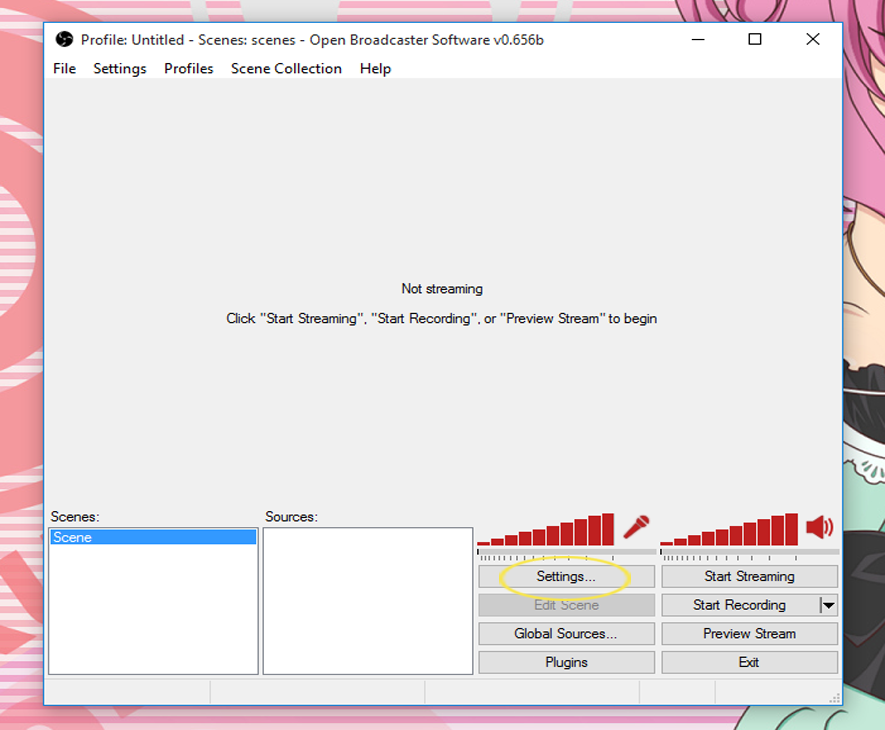
Now you're going to click on settings.

Once you're there make your way down to Broadcast Settings.

You should see this screen.

Select the .flv file output and change it to .mp4

It should look like this now. Click the Apply button that's located at the bottom right corner of the software.

Next locate the Hotkeys tab on the left side of the software.

Set your designated Hotkeys for Start Recording, and Stop Recording. As you see I have set mine as R for Recording and S for Stop Recording. Once done click Apply then OK.

Right click the white box bellow Sources.

Your screen should look like this now.

Hover over the Add tab and you should see a list like this one. If you want to record your whole monitor then you can select Monitor Capture, but if you're like me and just want to record a specific screen go ahead and click Window Capture.

You will see this asking you to enter a name for your screen capture.

Then you should be taken to this screen.

Select the window that you want to capture. If you don't see it right away or you just opened it, hit the Refresh button.

You wanna make sure that Inner Window is selected unless you want your entire screen to be recorded.

. . . and that's it. You're all set to go, just click your preferred Hotkey and start recording!

Any questions, comments, concerns, or anime suggestions? Feel free to leave them down bellow in the comments section!
Comments